

New Privacy Controls
In order to give our customers more control over their vehicle tracking and allow for greater privacy if necessary, we have designed privacy controls to allow our customers to set multiple times when vehicles are not tracked.
In order to give our customers more control over their vehicle tracking and allow for greater privacy if necessary, we have designed privacy controls to allow our customers to set multiple times when vehicles are not tracked.
In order to give our customers more control over their vehicle tracking and allow for greater privacy if necessary, we have designed privacy controls to allow our customers to set multiple times when vehicles are not tracked.
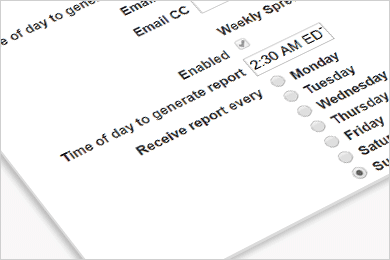
To access this feature, go to Configuration on the main application menu and select “Edit Vehicle Privacy Details.” You will then need to select a specific vehicle. You cannot set privacy controls across an entire group of vehicles.
To create privacy settings, you will need to choose between Standard, Privacy (defined working hours) and No monitoring.
However, should you choose to define privacy hours, click ‘Privacy – defined working hours only,’ then begin to set the hours you desire.
For these two options, you will not need to set any other privacy controls, unless you want different hours on certain days.
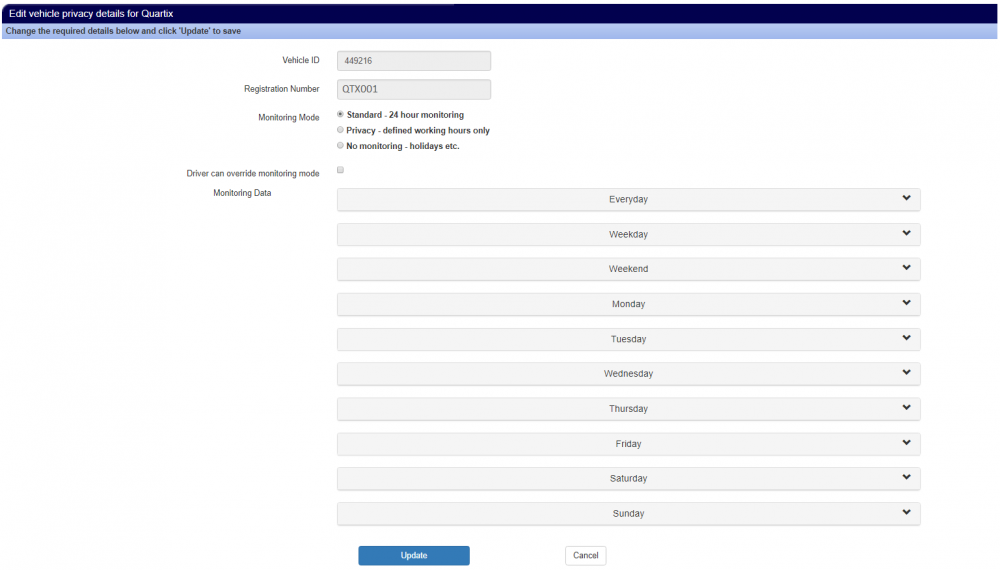
If your privacy hours vary more than this, you can either:
If you, for example, need to set alternate hours for Monday, but not for any other day, the other days will default to whatever you chose for either Everyday or Weekday/Weekend.
There is no limit to the number of tracking time periods that you can set each day. When one is set, simply click ‘Add monitoring period’ to add another time for that day.
The “Tracking Time” column will total the number of hours that have been set to be tracked in the day. This will account for any overlaps, even though those will be excluded when the Update button is clicked. The purpose of this column is to allow you to confirm that the settings you are creating are what you expected.
Monitoring periods cannot overlap and if “Update” is clicked then an error message in red will be shown beneath the time boxes where the discrepancy occurred.
Drivers will only be able to tell if they are in a period of monitoring, and when that period will end. They will not be able to see the list of monitoring periods that have been created, but they will have the option to override monitoring.
For more information on this or any feature of our system, please contact us or request to take a free demo!

We’ll help you decide which vehicle tracking option is right for you


Top-rated fleet tracking, zero setup fees. Limited time offer for new customers.
Get the discount